Creating a Debian 13 KVM on Proxmox 9.x (cloud-init)
The image we are going to use can be downloaded from this URL:
We start by uploading the image to Proxmox:
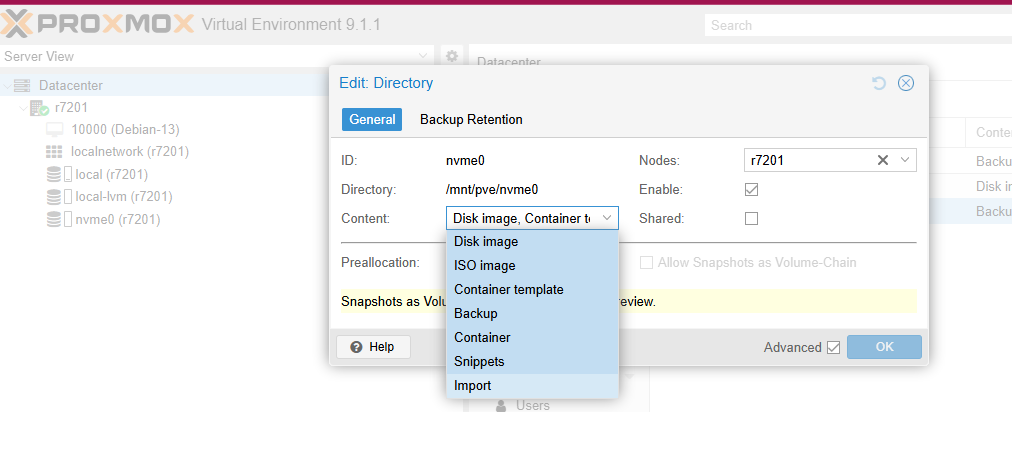
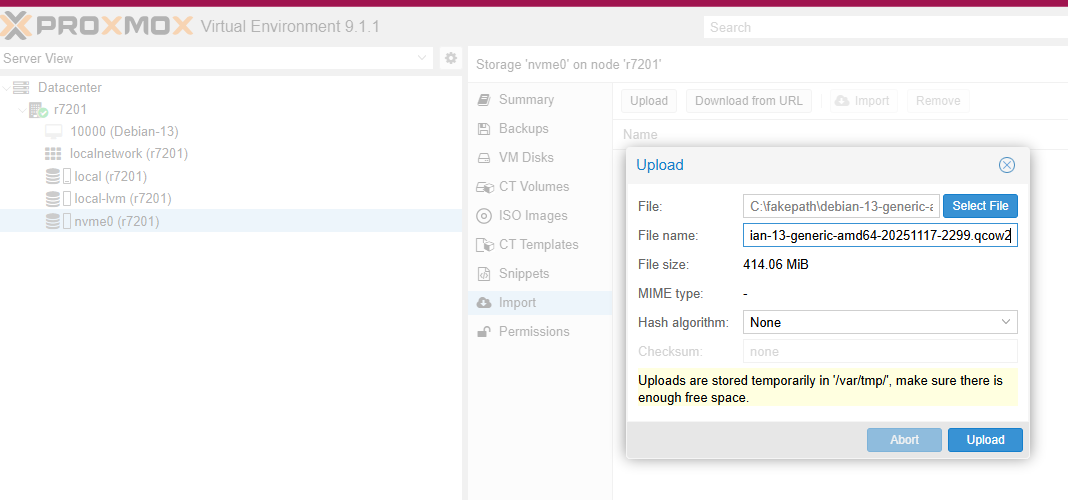
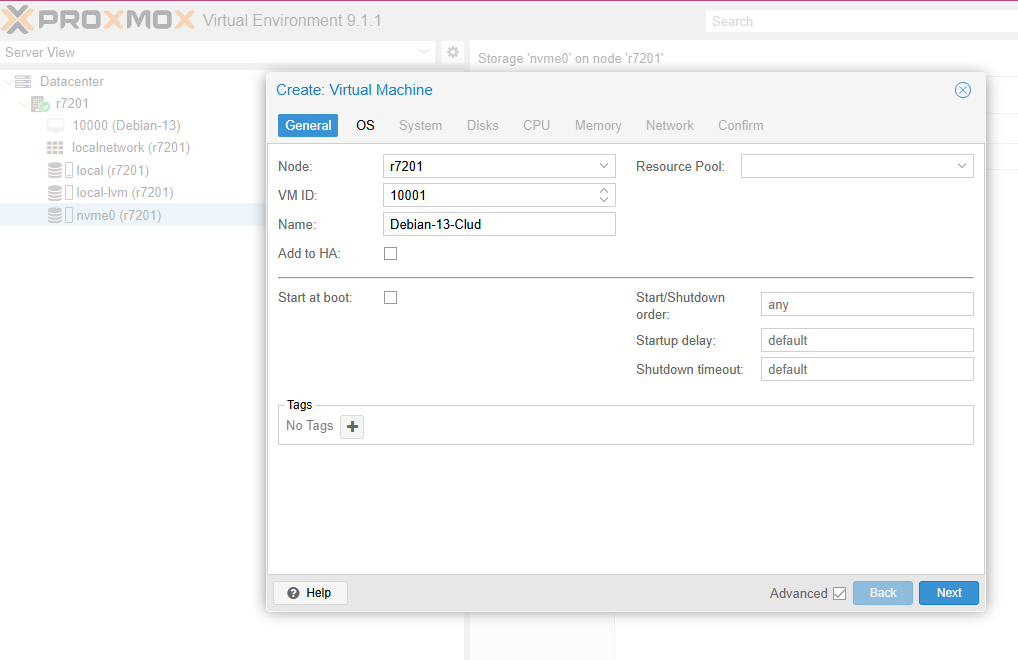
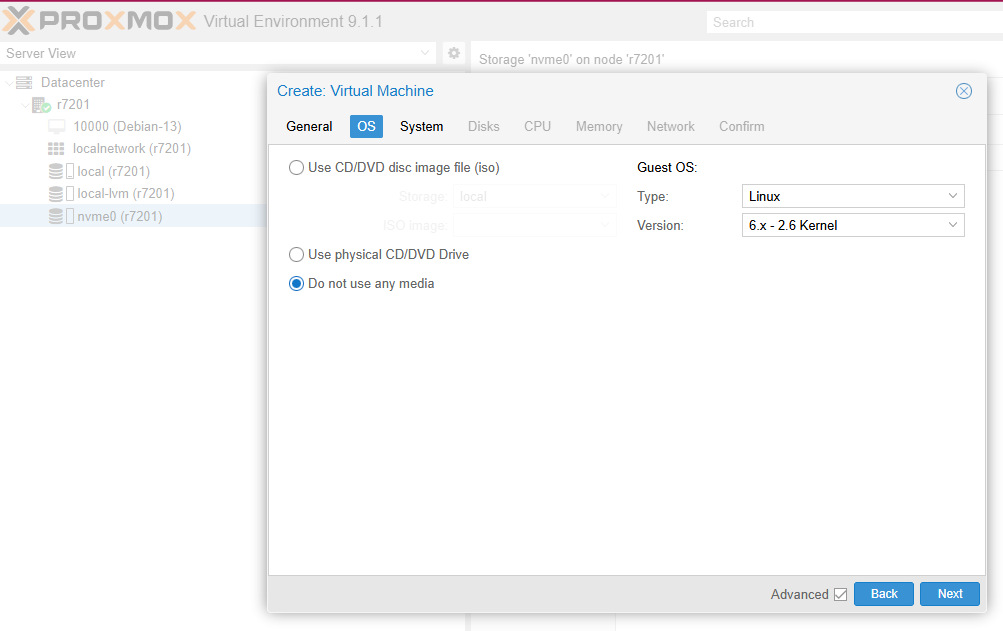
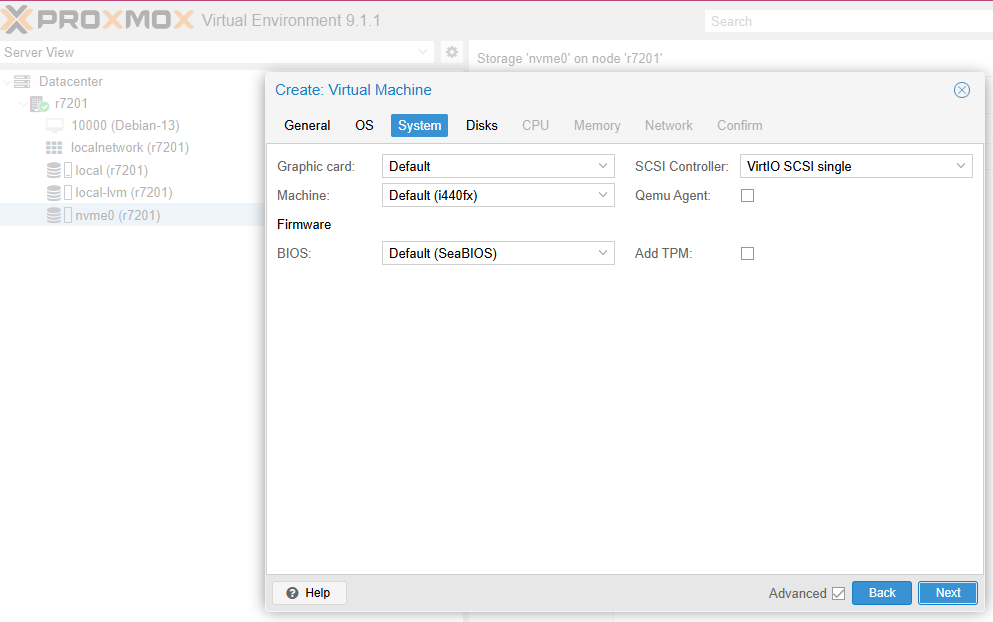
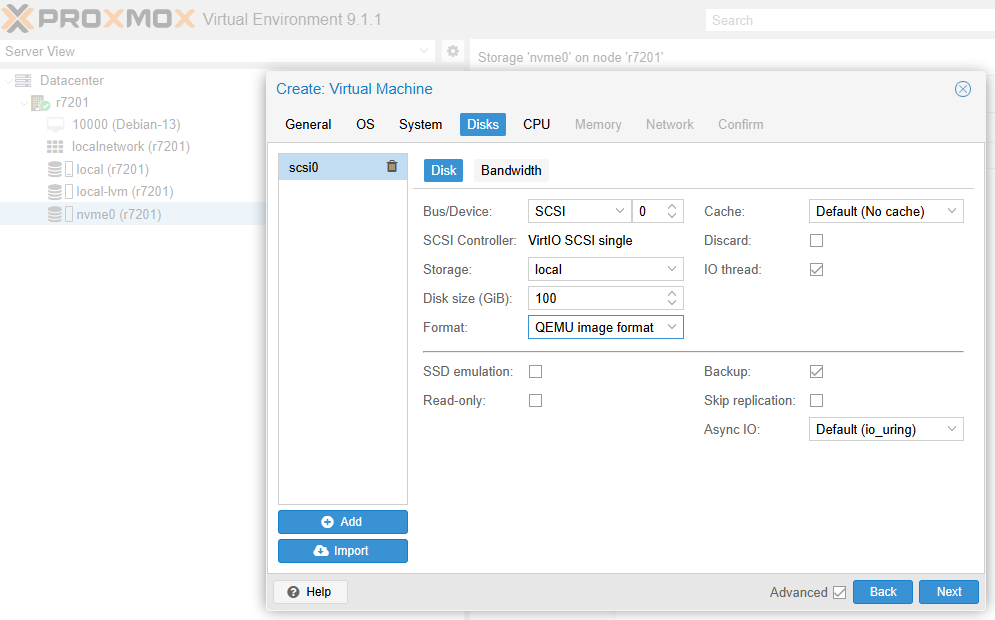
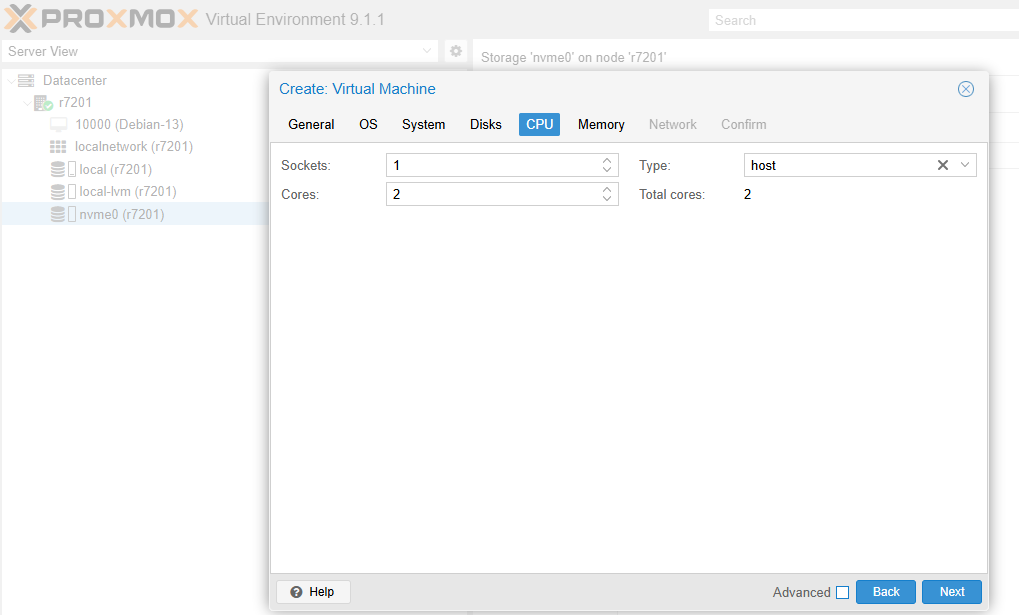
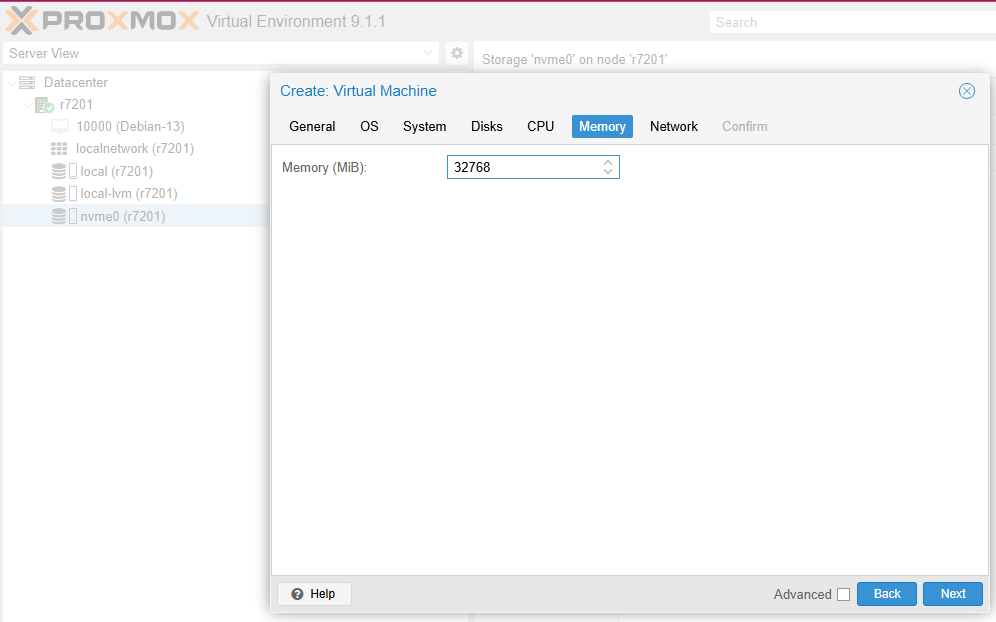
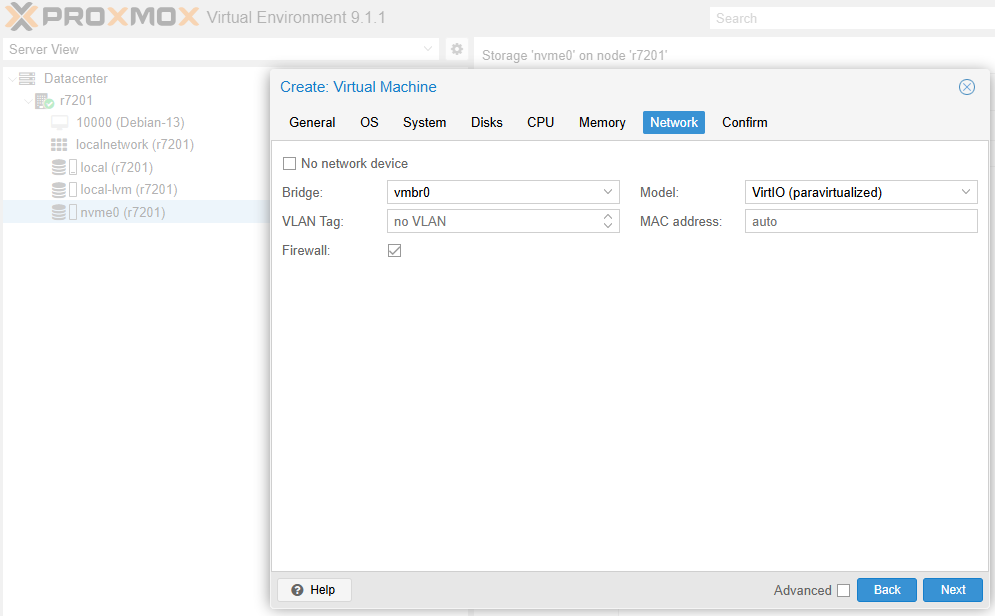
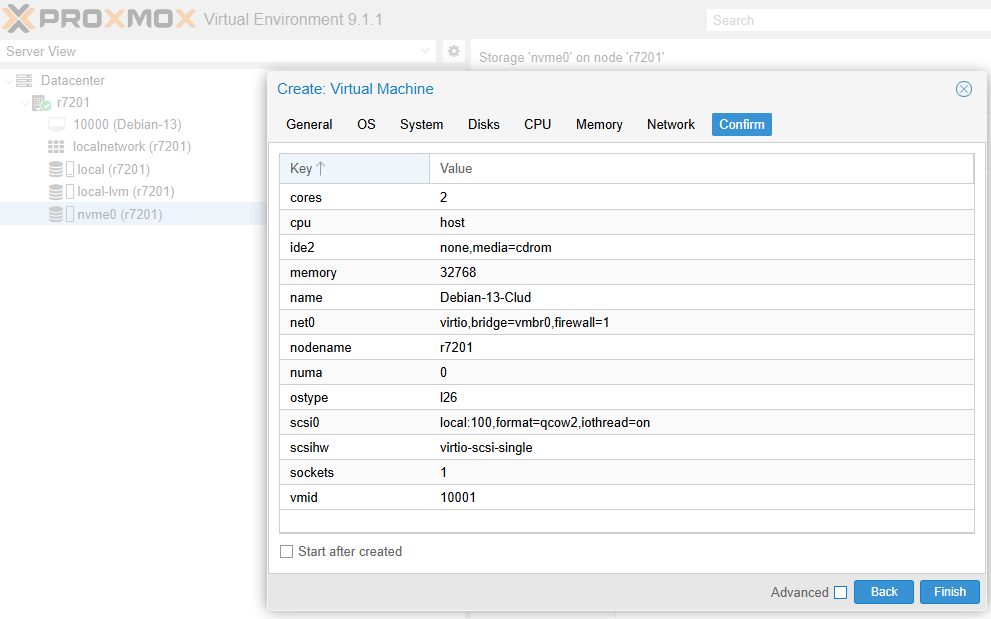
We select the created disk, then detach it and delete it.
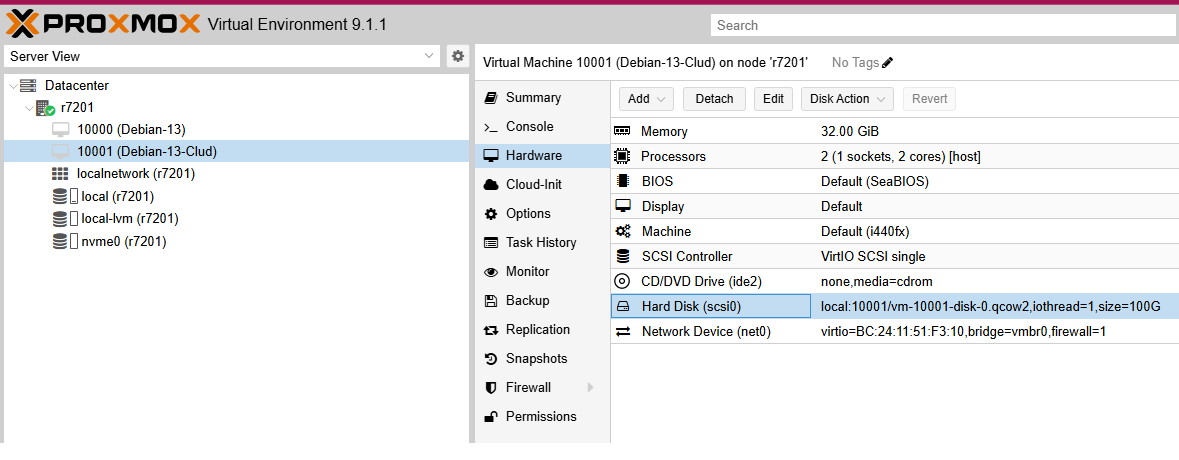
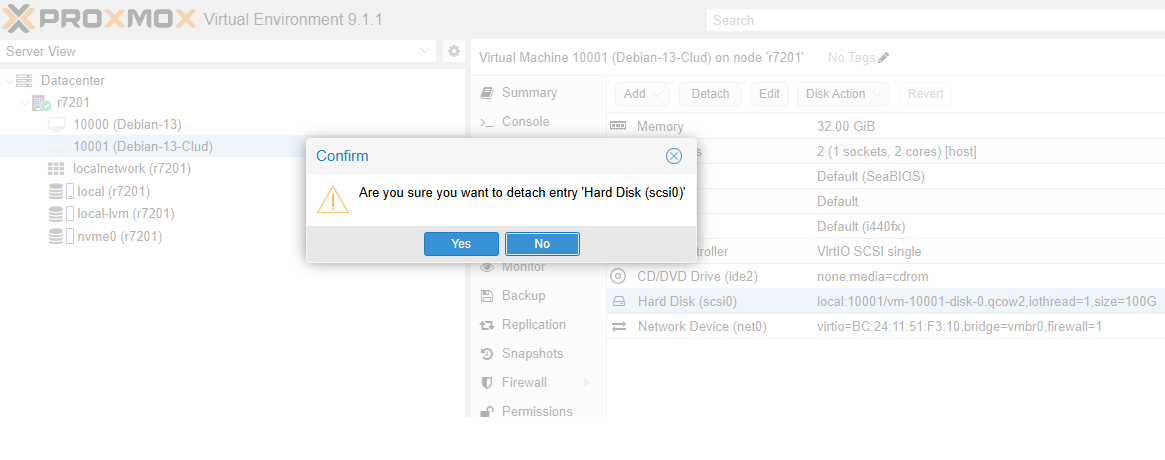
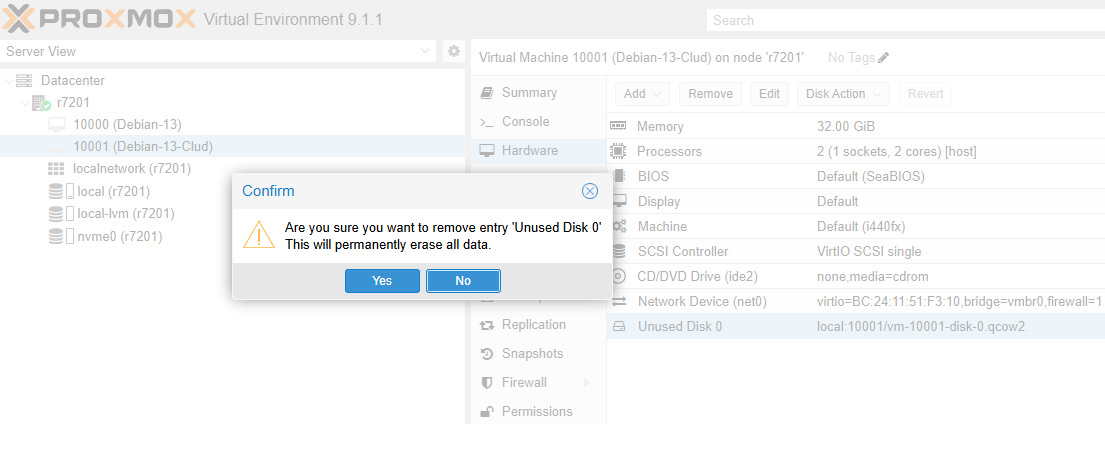
Now, from the console, we need to link the downloaded image (.qcow2) to the VM. To do this, type the following:
qm disk import <vmid> /path/donde/bajamos/imagen.qcow2 storage --format qcow2
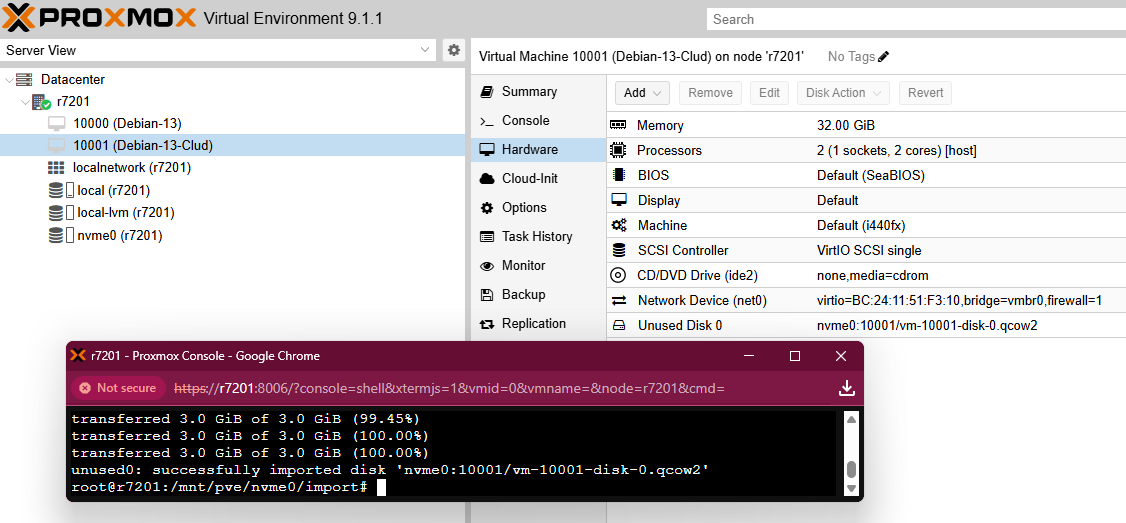
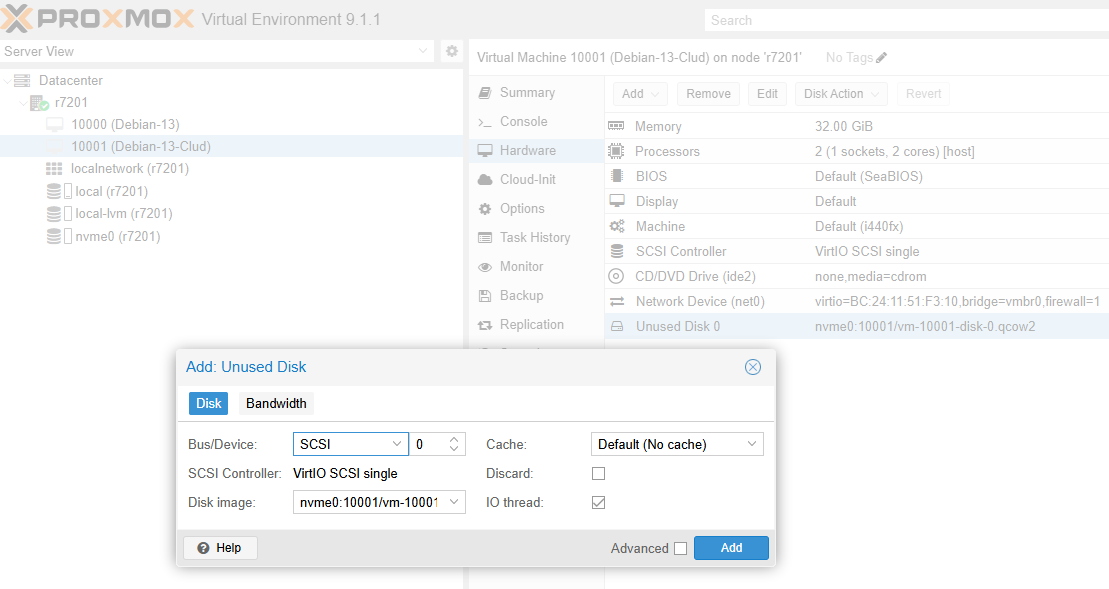
Once the command has been executed, return to the UI. At this point, you will see the new disk, but in an unused state. To attach it, double-click on it and press the add button.
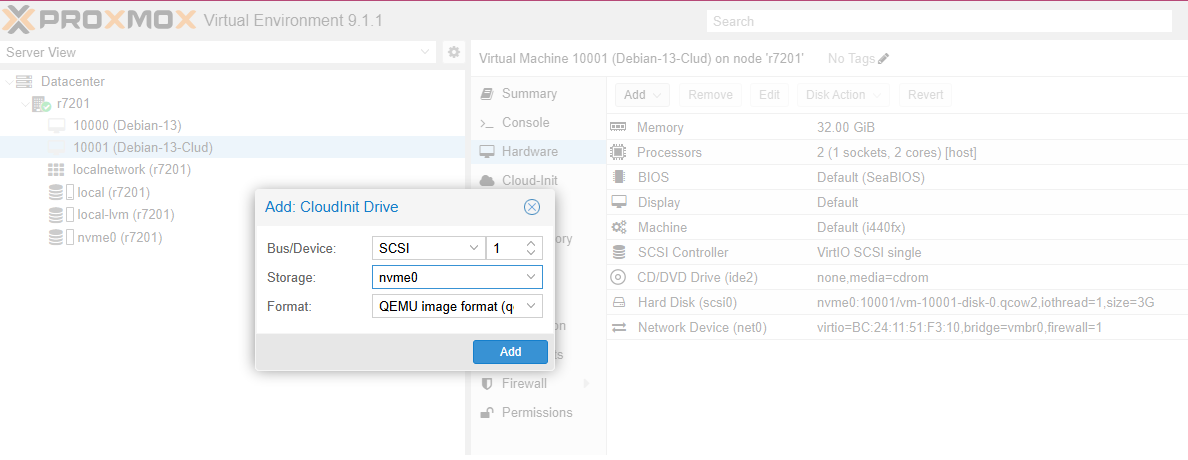
Then, continue with the installation of the Cloud Init Drive, serial console, username and password, etc:
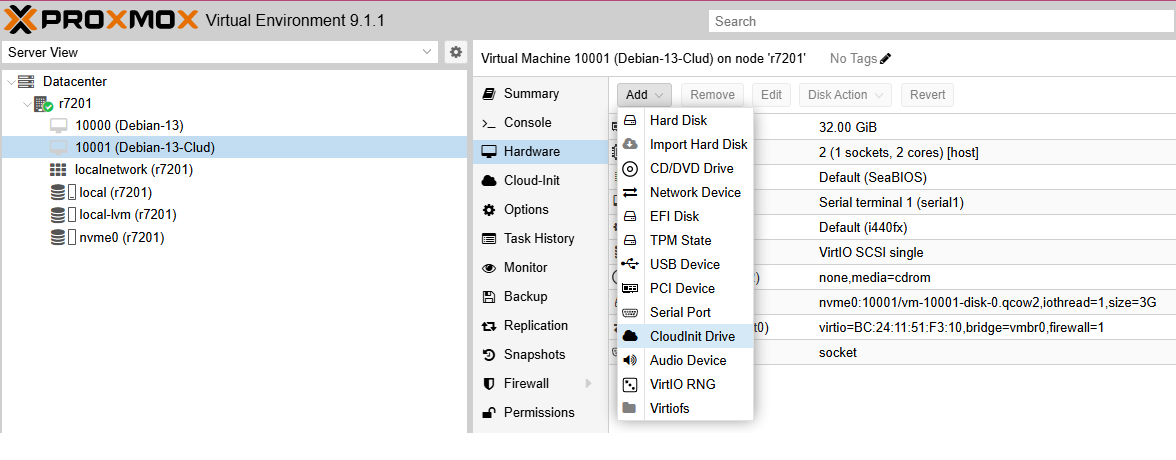
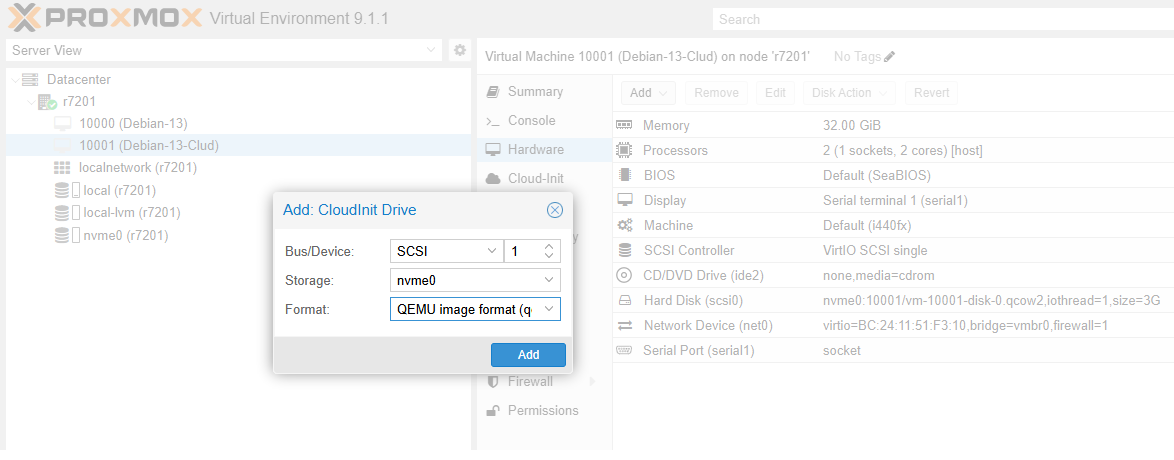
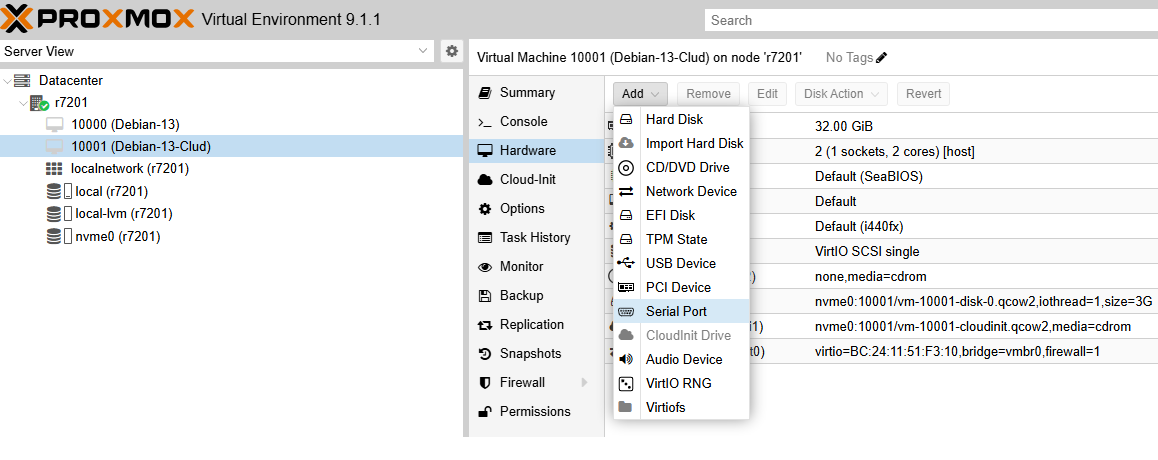
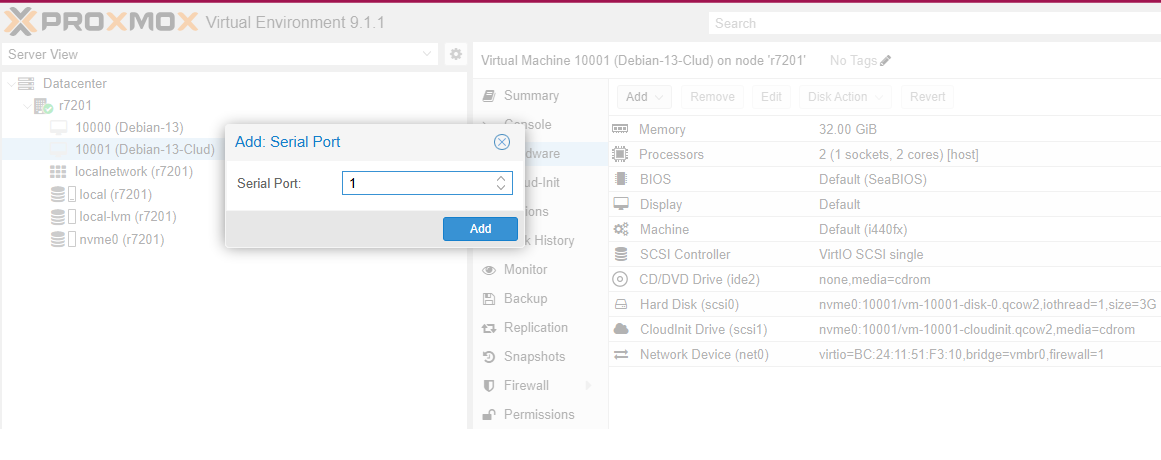
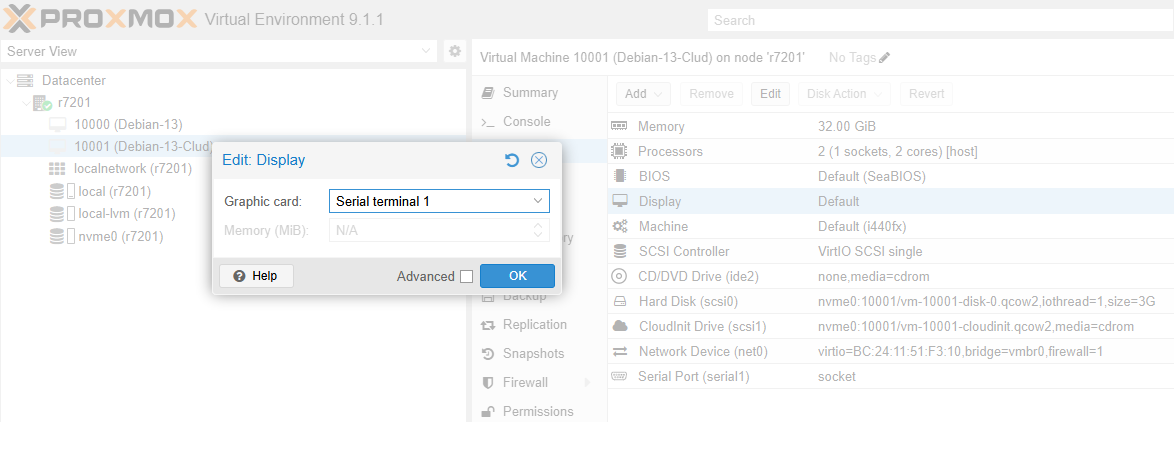
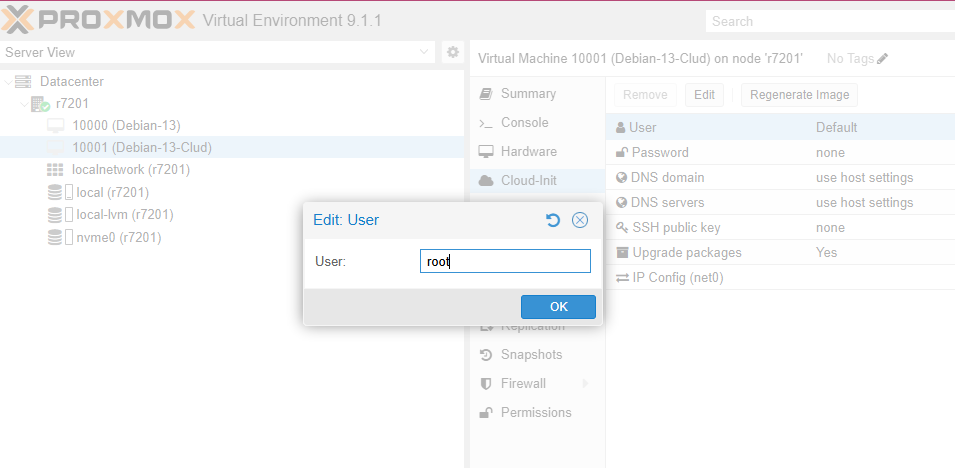
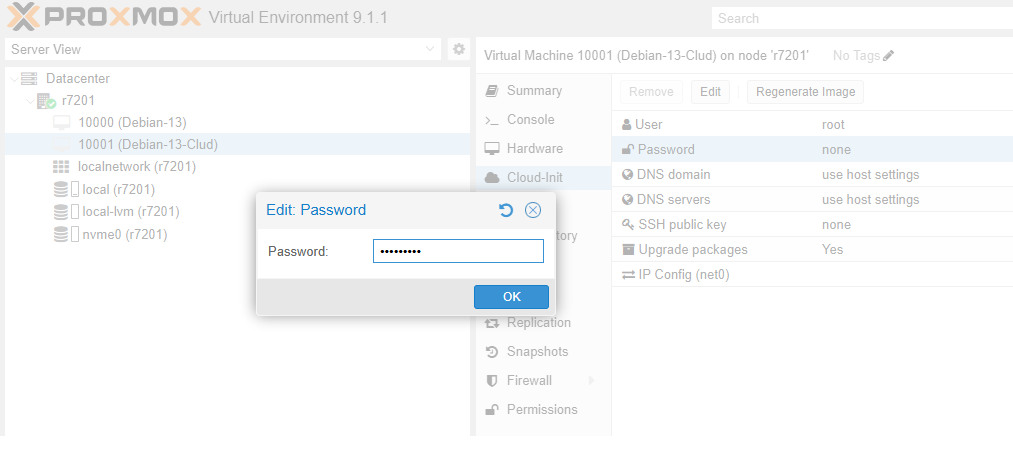
This is the final step, which consists of creating the boot order, placing the scsi0 disk we created in the first position:
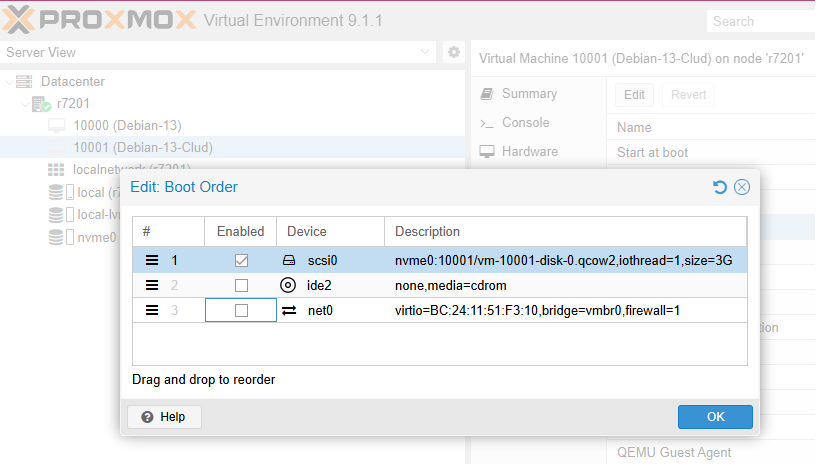
If everything was successful, after starting the VM we will see the login prompt in the console.